> ## Documentation Index
> Fetch the complete documentation index at: https://www.jetify.com/docs/llms.txt
> Use this file to discover all available pages before exploring further.
# Inviting your Team Members
> If you have a paid Team project, you can invite team members to join your project. Team members can configure and use your project’s secrets when developing using the Devbox or Envsec CLI.
If you want to invite team members to your projects, you will need to add a payment option and
upgrade your account to a Starter Plan. For more details, see our [Plans and
Pricing](https://www.jetify.com/cloud/pricing).
Team members can be added in one of two Roles:
* **Member:** Members can access or add projects, as well as access or modify the secrets for their
projects
* **Admins:** Have all the permissions of Members, but can also invite new team members and
configure project billing
## Adding a Team Member[](#adding-a-team-member "Direct link to Adding a Team Member")
1. In the Jetify Dashboard, navigate to the **Members** tab
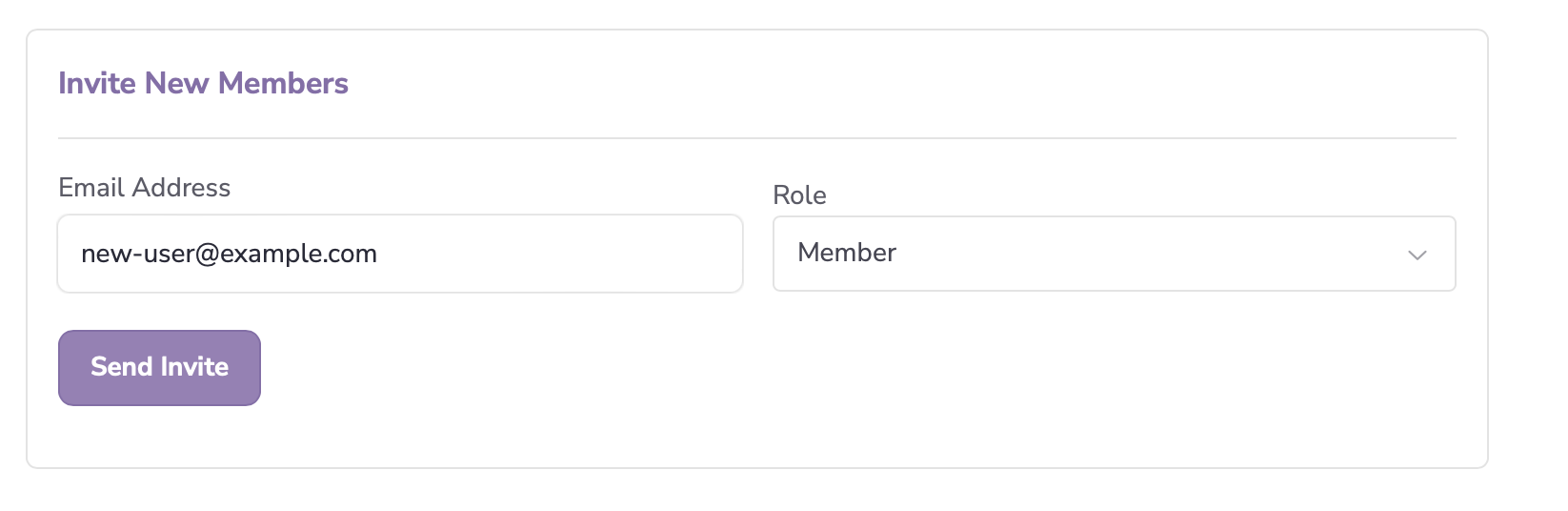
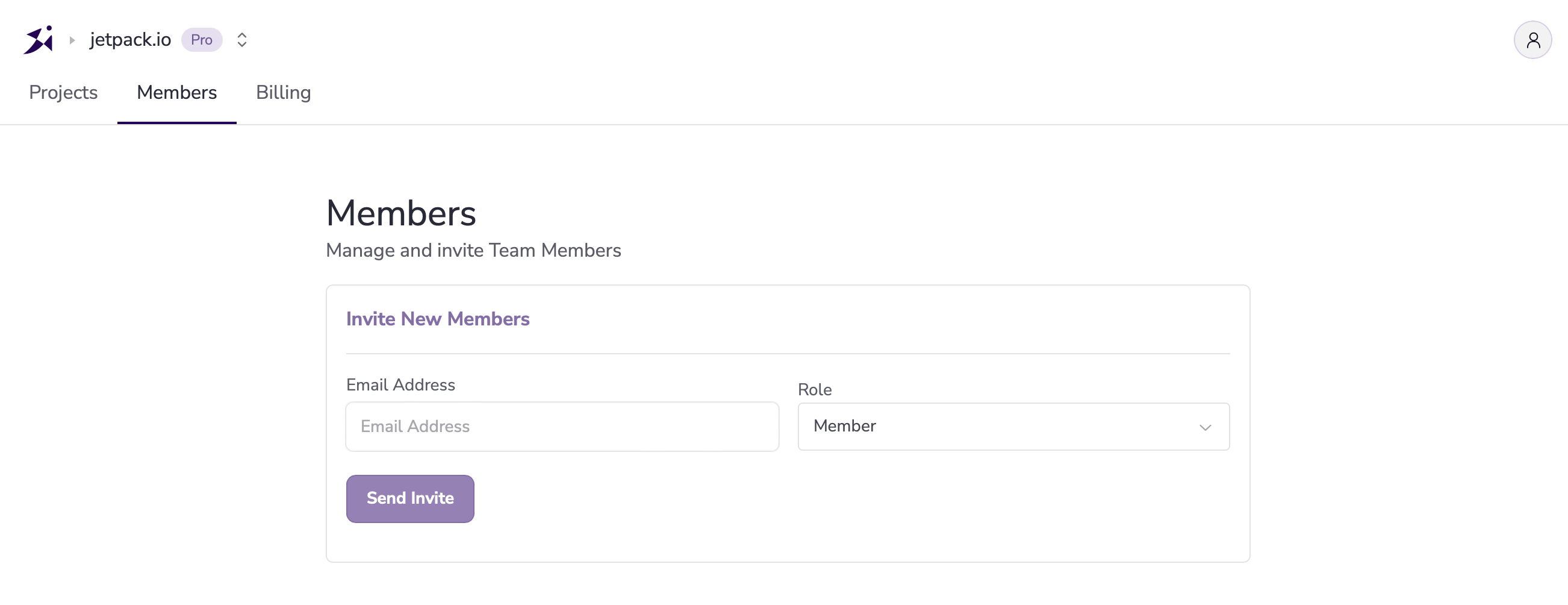 2 . To invite a member, enter their email address, and the **Role** you want to assign to them.
 1. Once invited, users will receive an email with instructions on how to join your team. They will
show up in the **Members** tab as invited until they accept the invitation:
1. Once invited, users will receive an email with instructions on how to join your team. They will
show up in the **Members** tab as invited until they accept the invitation:
 Note that invitations will expire if they are not accepted within 7 days, after which you will
need to re-send the invitation.
Once they accept the invitation, they will switch to **active**
Note that invitations will expire if they are not accepted within 7 days, after which you will
need to re-send the invitation.
Once they accept the invitation, they will switch to **active**
 ## Removing a Team Member[](#removing-a-team-member "Direct link to Removing a Team Member")
Removing a team member will remove their access to all projects and secrets in your team. To remove
a team member
1. Navigate to the Members tab on the Jetify Dashboard
2. Click the Options button to the right of the member's name
3. Select Delete from the pop up that appears:
## Removing a Team Member[](#removing-a-team-member "Direct link to Removing a Team Member")
Removing a team member will remove their access to all projects and secrets in your team. To remove
a team member
1. Navigate to the Members tab on the Jetify Dashboard
2. Click the Options button to the right of the member's name
3. Select Delete from the pop up that appears:
 1. Click **OK** on the confirmation window that appears to confirm that you want to remove the
member from your team
1. Click **OK** on the confirmation window that appears to confirm that you want to remove the
member from your team