> ## Documentation Index
> Fetch the complete documentation index at: https://www.jetify.com/docs/llms.txt
> Use this file to discover all available pages before exploring further.
# Managing Secrets from the Dashboard
> You can add or manage secrets for a Jetify Cloud project using the Secrets tab of the Jetify Dashboard. Secrets that you set in the Dashboard will be automatically available when an authenticated member of your team uses Devbox to start a shell, script, or service in the application.
## Prerequisites[](#prerequisites "Direct link to Prerequisites")
To manage secrets from the Jetify Cloud Dashboard, you must first:
1. Add the project to your Jetify Cloud account
2. Initialize the project to use Jetify Secrets
## Adding a Secret[](#adding-a-secret "Direct link to Adding a Secret")
1. From the Jetify Dashboard, select the project whose secrets you want to manage
2. Navigate to the Secrets tab of the Jetify Dashboard
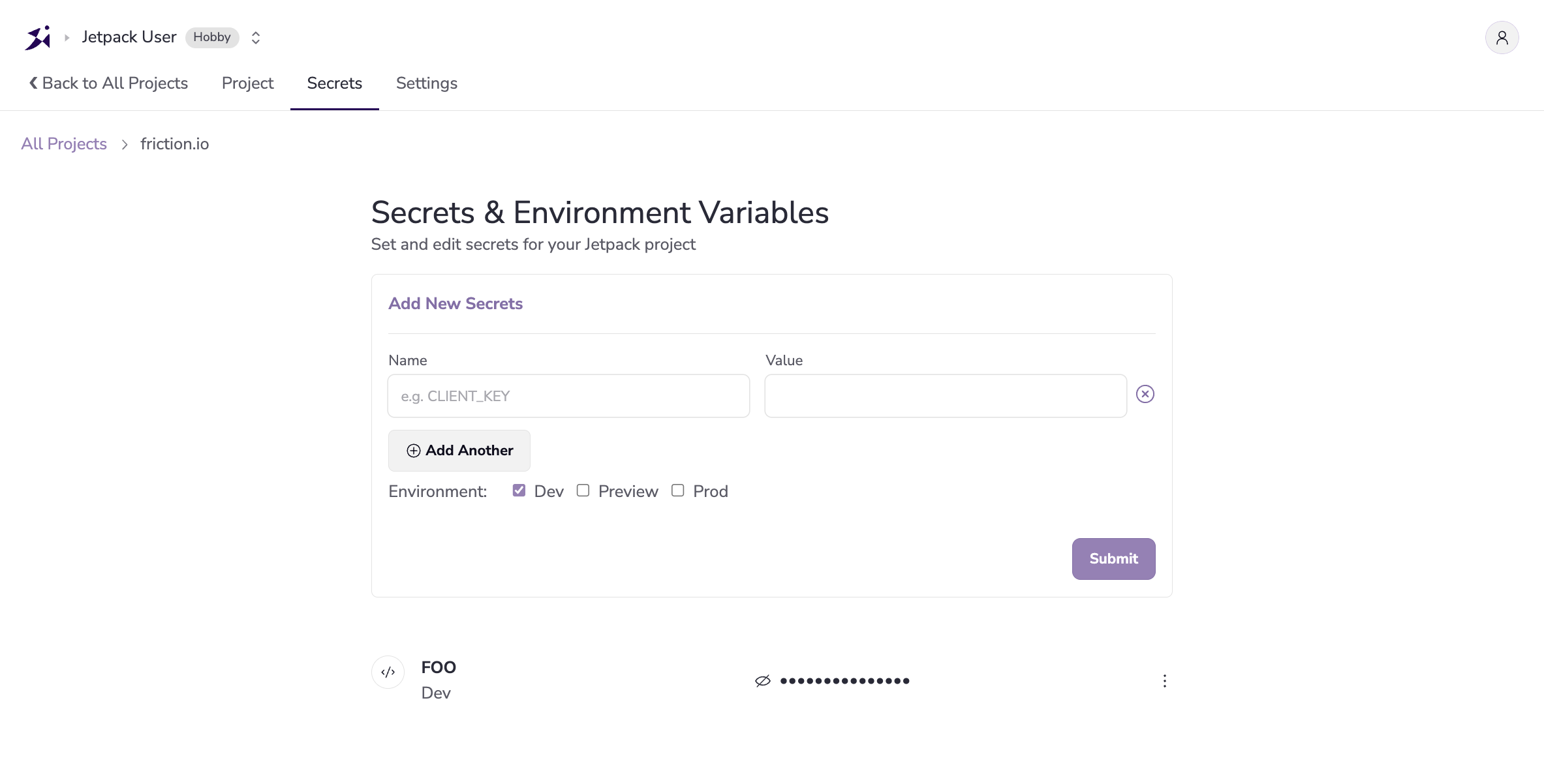 3. To create a new secret, enter the key name of the secret, along with the value that you want to
set in the form. Note that secrets are set as environment variables, so the key name must be a
valid environment variable name.
4. You can also use the Environment checkboxes to set the secret for a specific environment. By
default, secrets are set for the `Development` environment, but you can also set secrets for a
`Preview` and `Prod` environment.
5. To add multiple secrets at one time, click the **Add Another** button
6. When you are finished adding secrets, click the **Submit** button
## Updating and Managing Secrets[](#updating-and-managing-secrets "Direct link to Updating and Managing Secrets")
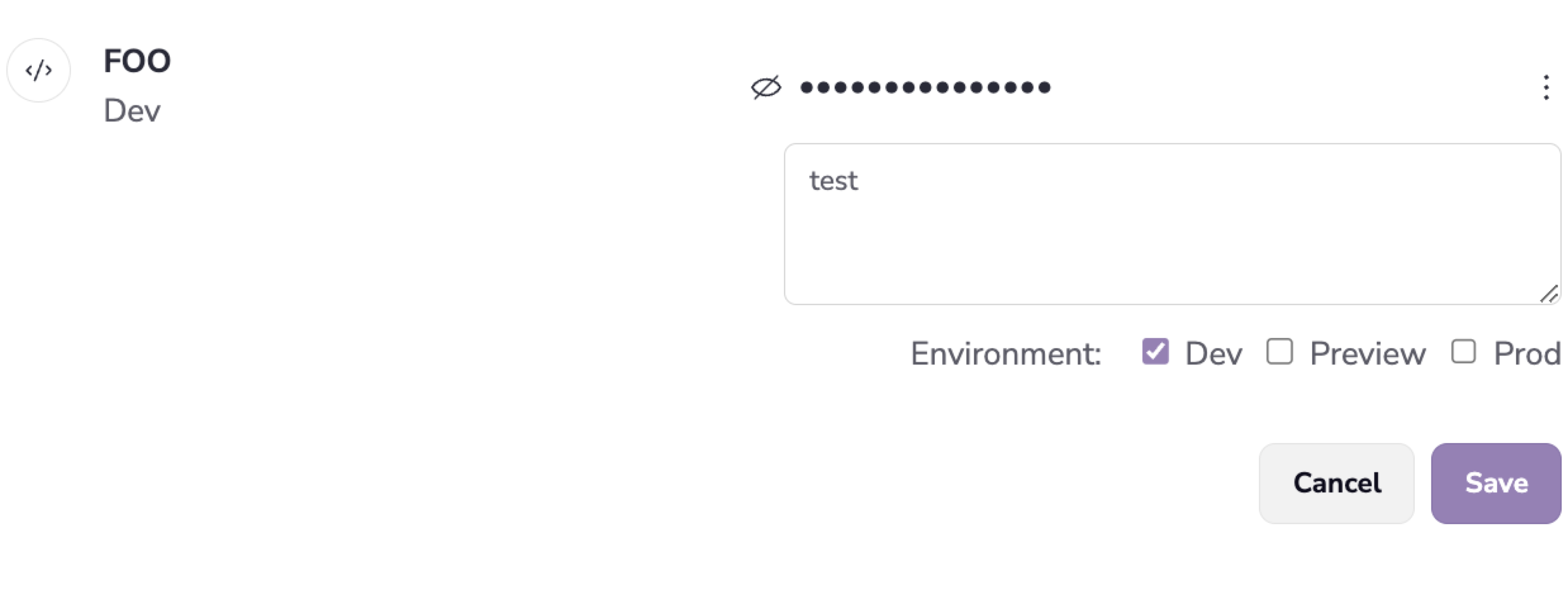
You can update or manage secrets by clicking the edit button next to the secret that you want to
update. This will open a modal where you can update the value of the secret, or delete the secret
entirely.
3. To create a new secret, enter the key name of the secret, along with the value that you want to
set in the form. Note that secrets are set as environment variables, so the key name must be a
valid environment variable name.
4. You can also use the Environment checkboxes to set the secret for a specific environment. By
default, secrets are set for the `Development` environment, but you can also set secrets for a
`Preview` and `Prod` environment.
5. To add multiple secrets at one time, click the **Add Another** button
6. When you are finished adding secrets, click the **Submit** button
## Updating and Managing Secrets[](#updating-and-managing-secrets "Direct link to Updating and Managing Secrets")
You can update or manage secrets by clicking the edit button next to the secret that you want to
update. This will open a modal where you can update the value of the secret, or delete the secret
entirely.
 ## Further Reading[](#further-reading "Direct link to Further Reading")
* [Managing Secrets with the Devbox CLI](/docs/cloud/secrets/secrets-cli/)
## Further Reading[](#further-reading "Direct link to Further Reading")
* [Managing Secrets with the Devbox CLI](/docs/cloud/secrets/secrets-cli/)